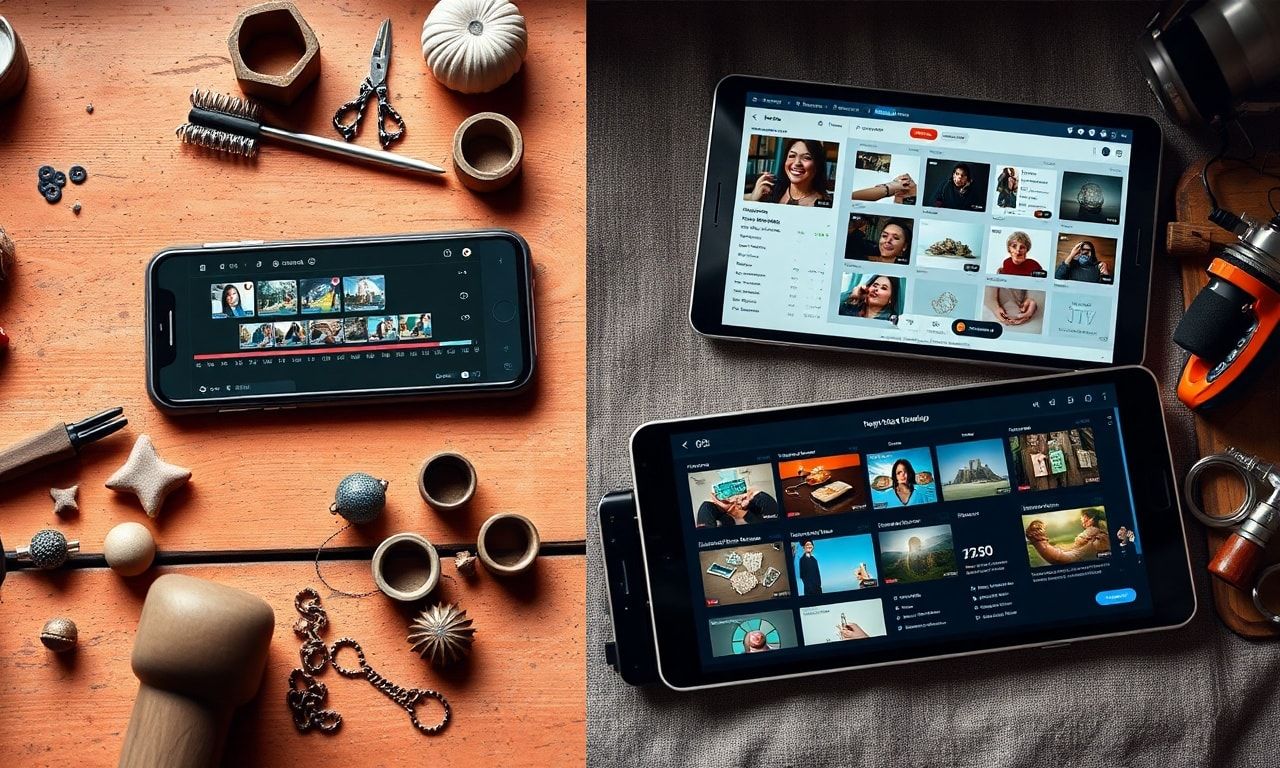
The Best AI Tools for Etsy Sellers to Master Video Editing with CapCut
Introduction: Why Etsy Sellers Need Video in 2024
In the bustling digital marketplace of Etsy, where over 7.5 million sellers compete for the attention of nearly 96 million active buyers, standing out is not just an advantage—it’s a necessity. High-quality imagery has long been the standard, but the new frontier for engagement and conversion is video content. From showcasing the intricate details of a handmade necklace to demonstrating the functionality of a digital planner, video tells a story that static images simply cannot.
For the creative entrepreneur, the thought of video editing can be daunting. Time is a precious commodity, and professional editing software often comes with a steep learning curve and a hefty price tag. This is where the powerful combination of intuitive mobile editing and artificial intelligence becomes a game-changer. Enter CapCut, a free, user-friendly video editor that is quietly revolutionizing how small business owners create content. But to truly unlock its potential for your Etsy shop, pairing it with the best AI tools for Etsy sellers can automate tasks, enhance quality, and free you up to focus on what you do best: creating.
This comprehensive guide will walk you through how to edit captivating videos using CapCut, strategically integrated with AI tools designed to give your Etsy business a formidable edge.
What is CapCut and Why Is It Perfect for Etsy Sellers?
CapCut, developed by ByteDance (the creators of TikTok), is a cross-platform video editing application available for mobile (iOS/Android) and desktop. It has surged in popularity due to its robust feature set offered at the unbeatable price of free.
For an Etsy seller, its appeal is multi-faceted:
- Zero Financial Barrier: No subscriptions or upfront costs, perfect for bootstrapped businesses.
- Intuitive Interface: Designed for simplicity without sacrificing advanced capabilities.
- Mobile-First: Edit on-the-go, allowing you to capture and edit process videos in your studio instantly.
- Trend-Driven Features: Built-in templates, effects, and music that align with current social media trends, ideal for Reels, Shorts, and TikTok promo.
- Cloud Collaboration: Useful if you work with a virtual assistant or designer.
While CapCut is powerful on its own, its true superpower for entrepreneurs is unlocked when used as the central hub in a toolkit enhanced by specialized AI.
Step-by-Step Guide: Editing Your Etsy Product Videos with CapCut
Let’s break down the process of creating a compelling product video from start to finish.
Step 1: Pre-Production Planning & AI Scripting
Before you open CapCut, plan your video.
- Goal: Is it a tutorial, a behind-the-scenes, a product showcase, or a customer testimonial?
- Hook: The first 3 seconds are critical. Plan a visually arresting opening.
- AI Tool Integration: Use an AI copywriting tool like Jasper or Copy.ai to generate engaging video script outlines, title ideas, and key bullet points for your voice-over. This is one of the best AI tools for Etsy sellers to overcome creative block and ensure your messaging is clear and compelling.
Step 2: Importing and Organizing Your Media
- Open CapCut and start a “New Project.”
- Import all your video clips, product photos, logo files, and any audio (voice-over, music). CapCut allows you to import directly from your phone’s gallery or cloud storage.
- Drag and drop clips onto the timeline in your desired order. Pro Tip: Shoot 3-5 seconds longer than you need at the start and end of each clip for smoother transitions.
Step 3: Basic Editing: Cutting, Trimming, and Sequencing
- Trim: Tap on a clip in the timeline and drag the edges to shorten it.
- Split: Use the split tool (scissor icon) to cut a clip into segments, allowing you to remove mistakes or insert B-roll.
- Rearrange: Simply long-press and drag clips to reorder your story flow.
Step 4: Enhancing Visuals with Filters, Adjustments & AI Upscaling
- Color Correction: Tap on a clip -> “Adjust.” Play with brightness, contrast, saturation, and sharpness to make your product colors pop and ensure consistent lighting.
- Filters: Apply consistent, brand-appropriate filters for a professional look.
- AI Enhancement: Here’s a key integration point. If your source footage is grainy or low-resolution, use an AI image/video upscaling tool like Topaz Labs Video AI or HitPaw Video Enhancer before importing to CapCut. These tools can magically improve clarity and resolution, ensuring your handmade details look exquisite. This is a non-negotiable among the best AI tools for Etsy sellers who rely on visual fidelity.
Step 5: Adding Dynamic Text, Graphics & Auto-Captions
- Text: Tap “Text” -> “Add Text.” Choose from dozens of animated styles. Use text to highlight key features, prices, or your Etsy shop name.
- Stickers & Graphics: Add animated elements, arrows, or PNG overlays of your logo.
- Auto-Captions – The AI Power Move: This is CapCut’s killer feature for accessibility and reach. Tap “Text” -> “Auto Captions.” CapCut’s AI will transcribe the audio in your video and generate synchronized captions. You can then edit any errors, change the font, and style them to match your brand. This dramatically increases watch time, especially on sound-off social platforms.
Step 6: Incorporating Audio: Voice-Over, Music & Sound Effects
- Voice-Over: Record a professional voice-over directly in CapCut by tapping “Audio” -> “Record.”
- AI Voice-Over Alternative: For a polished, consistent narration without recording, use an AI voice generation tool like Murf.ai or Play.ht. Create your script, generate a natural-sounding voice, and import the audio file into CapCut. This saves immense time and ensures audio quality.
- Music & SFX: CapCut has an extensive, royalty-free library. Add background music (lower the volume under “Ducking” so it doesn’t overpower speech) and subtle sound effects for emphasis.
Step 7: Finalizing with Smooth Transitions and Exporting
- Transitions: Tap the small square between clips on the timeline to add fades, slides, or creative transitions. Use them sparingly for a professional effect.
- Export Settings: Tap the export button (top right). For Etsy listings and Instagram, 1080p (Full HD) at 30fps is perfect. For a cinematic look, use 24fps. For fast-paced Reels/TikTok, 1080p at 60fps is ideal. Always include your shop name in the exported filename.
The Essential AI Toolkit to Supercharge Your CapCut Workflow
While CapCut has built-in AI (like auto-captions), pairing it with external AI tools creates an unstoppable content engine.
| AI Tool Category | Specific Tools | Use Case for Etsy Sellers |
|---|---|---|
| Script & Copy AI | Jasper, Copy.ai, ChatGPT | Generating video scripts, product descriptions from videos, social media captions. |
| Visual Enhancement AI | Topaz Video AI, HitPaw Enhancer | Upscaling low-res process videos, removing background noise from footage. |
| Audio & Voice AI | Murf.ai, Play.ht, Adobe Podcast AI | Creating flawless voice-overs, cleaning up noisy audio recordings from your workshop. |
| Thumbnail & Graphic AI | Canva AI, Midjourney*, Adobe Firefly | Designing click-worthy video thumbnails, creating branded graphics for lower-thirds. |
| Product Photography AI | Remove.bg, Photoroom | Instantly removing or replacing backgrounds in product clip images used in videos. |
*Note: For AI image generation, ensure you have commercial rights to use the generated visuals for your business.
Integrating these best AI tools for Etsy sellers means you can turn a 2-hour editing job into a 30-minute streamlined process, repurpose one video into multiple formats (long-form for YouTube, short for TikTok), and maintain a consistent, high-quality brand presence across all platforms.
Advanced CapCut Features for Brand Storytelling
Go beyond the basics to create an emotional connection with your audience:
- Keyframe Animation: Animate the movement of text, stickers, or even video clips to draw attention to specific product details.
- Chroma Key (Green Screen): Seamlessly place yourself or your product in any environment. Fantastic for digital product sellers.
- Masking: Reveal parts of a clip in a specific shape (like a circle revealing your logo), adding a layer of professional polish.
- Curve Speed Ramping: Create satisfying, slow-motion shots of a crafting technique or dramatic before-and-after reveals.
Optimizing Your Videos for Etsy and Social Media
Creating the video is only half the battle; optimization ensures it gets seen.
- For Etsy Listings: Upload your video to the primary listing video slot. Keep it under 75 seconds, focus on key features and benefits immediately, and use natural light.
- For Social Media: Repurpose your master CapCut edit into vertical (9:16) formats for Reels/Shorts/TikTok. Use trending audio (available in CapCut) and hashtags. Always include a clear Call-to-Action (CTA) like “Click the link in my bio” or “Favorite this item on Etsy.”
Frequently Asked Questions (FAQ)
Q: Is CapCut really free for commercial use for my Etsy business? A: Yes, CapCut is free for personal and commercial use. The vast majority of its features, including export without watermarks, are completely free. Some advanced premium effects or stock media may require payment, but the core editing toolkit is unrestricted.
Q: What are the absolute best AI tools for Etsy sellers on a tight budget? A: Start with a powerful, free-tier combo: Use ChatGPT (free version) for script and caption ideas, Canva (free plan) with its AI features for thumbnails and graphics, and Photopea (a free online Photoshop alternative) for basic edits. CapCut’s own Auto Captions is a powerful, built-in AI tool that costs nothing.
Q: I’m overwhelmed. What’s the first AI tool I should integrate with CapCut? A: Begin with Auto Captions within CapCut itself. It’s the easiest win. Then, integrate an AI background remover like Remove.bg or Photoroom. This will instantly elevate the professionalism of your product B-roll without requiring a perfect studio setup, delivering massive visual impact for minimal effort and cost.
Conclusion: Your Creative Advantage Awaits
In the competitive world of Etsy, the sellers who thrive are those who adapt and leverage technology to amplify their innate creativity. Video is no longer optional; it’s the currency of trust and engagement in modern e-commerce. CapCut provides the accessible, powerful platform to create that video content, while the strategic use of the best AI tools for Etsy sellers acts as a force multiplier—saving you time, enhancing quality, and streamlining your entire content creation pipeline.
Don’t let the learning curve hold you back. The investment you make in learning these tools is an investment in the visibility and scalability of your brand. Start simple, follow the steps outlined, and gradually incorporate one new AI tool at a time. Before long, you’ll be producing professional-grade, engaging video content that not only showcases your products but also tells the unforgettable story of your craft.
Ready to transform your Etsy shop with stunning video content? Pick one product today, follow this CapCut guide, and create your first video. Share it on your social media and tag it with #EtsyMade. Need more tailored advice? Bookmark this guide, and drop your biggest video editing question in the comments below—let’s build a community of savvy, creative entrepreneurs together