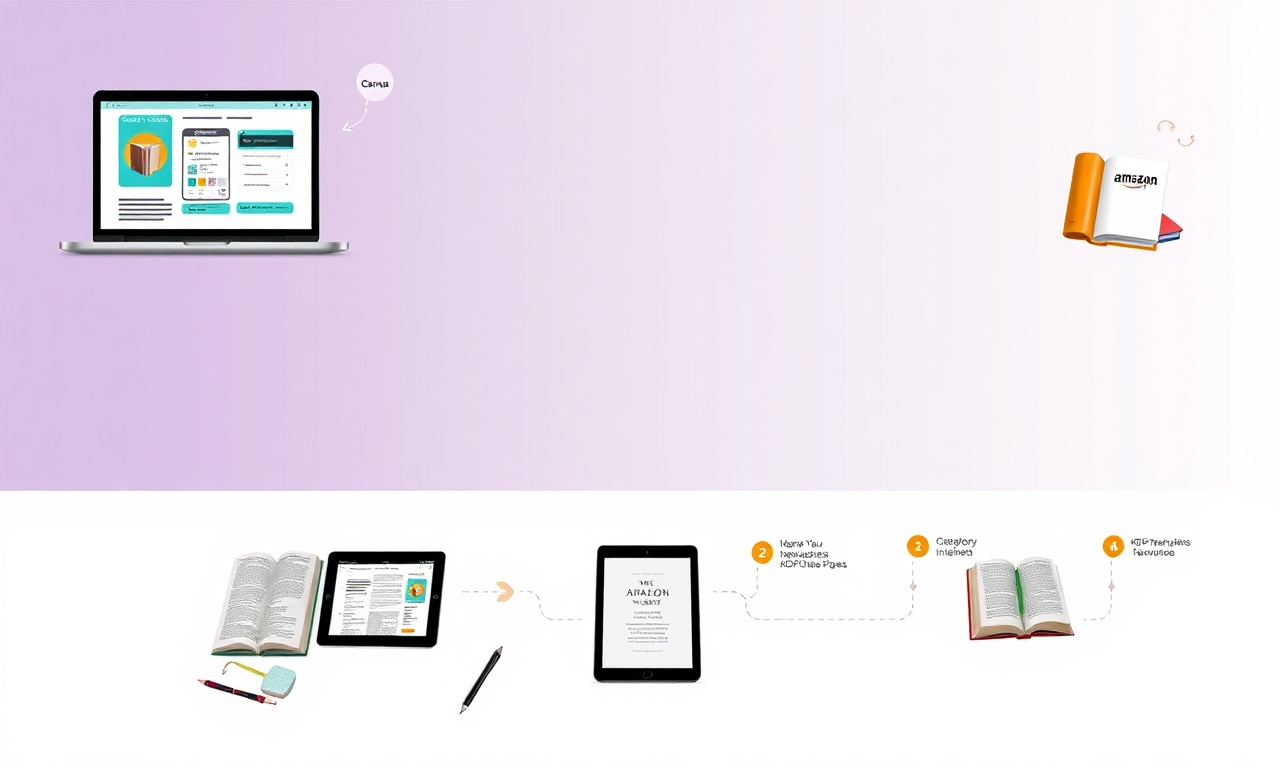
How to Publish Books on Amazon KDP Using Canva: A Streamlined Guide for Authors
In the dynamic world of self-publishing, Amazon Kindle Direct Publishing (KDP) has democratized the process, allowing anyone to become a published author. Yet, the perceived hurdles of professional interior formatting and cover design often deter aspiring writers. Enter Canva, the versatile graphic design platform. When combined, these tools create a powerful, accessible, and cost-effective publishing pipeline. This comprehensive guide will walk you through the entire process of publishing your book on Amazon KDP using Canva, from a blank page to a live product on the world’s largest bookstore.
H1: Why Choose Canva for Your Amazon KDP Publishing Journey?
Before diving into the “how,” it’s crucial to understand the “why.” Canva, known for its user-friendly drag-and-drop interface, is more than a tool for social media graphics. Its robust features make it a surprisingly strong contender for book design, especially for non-fiction, workbooks, journals, and children’s books.
Key Advantages:
- Zero Cost to Start: Canva’s free tier is remarkably powerful, with premium assets available for a modest subscription.
- No Advanced Skills Required: You don’t need to learn complex software like Adobe InDesign.
- Massive Asset Library: Access to millions of stock photos, illustrations, icons, and fonts.
- Template-Driven Efficiency: Start with professionally designed book cover and interior templates.
- Seamless Workflow: Design both your interior (paperback) and cover in one ecosystem.
H2: Pre-Publication Checklist: Getting Your Manuscript Ready
You cannot design what you haven’t finished. Preparation is key.
- Final, Edited Manuscript: Ensure your text is thoroughly proofread and edited. The design phase is not for rewriting.
- Trim Size Selection: This is your book’s physical dimensions. In KDP, common sizes are 5″ x 8″, 6″ x 9″, or 8.5″ x 11″ for workbooks. Decide this first, as it dictates all design dimensions.
- ISBN Decision: Amazon offers a free ISBN, but it lists them as the publisher. For full publishing independence, you may purchase your own.
- Keywords and Categories: Research 7 relevant Amazon keywords and 2-3 BISAC categories for your book’s listing.
- Book Description: Draft a compelling sales description that hooks readers.
H3: Step-by-Step: Designing Your Book Interior in Canva
For interiors, Canva is best suited for books where layout consistency is key but not typographically complex (e.g., novels are better formatted in dedicated tools like Atticus or Kindle Create).
H4: Setting Up Your Document
- Open Canva and search for “Book.” Select the “Document” preset that matches your chosen trim size (e.g., “US Letter” for 8.5″x11″).
- Immediately set up Master Pages. This is crucial for consistency. Design your standard chapter page, header/footer (with page numbers), and any recurring decorative elements here.
H4: Applying Typography and Layout
- Font Pairing: Choose two complementary fonts: one for headings, one for body text. Stick to them religiously. Canva Font Combinator can help.
- Import Text: Copy-paste your manuscript chapter by chapter. Use text boxes linked to your master page layout.
- Formatting Essentials:
- Margins: Ensure a 0.5″ inner margin (gutter) and 0.25″-0.5″ for others. KDP will warn you if margins are too small.
- Alignment: Use justified or left-aligned text for body paragraphs. Avoid centered text for long passages.
- Images: Upload and place high-resolution (300 DPI) images. Use Canva’s “Crop” and “Filters” tools to adjust.
H4: Finalizing and Exporting the Interior
- Page-by-Page Review: Scroll through every single page. Check for orphaned words, image placement, and consistent spacing.
- Add Front/Back Matter: Create your title page, copyright page (“© [Year] [Your Name]”), dedication, table of contents, and “About the Author” page.
- Export: Go to Share → Download. Select “PDF Print” as the file type. This is the format KDP requires for paperback interiors. Ensure the quality is set to high.
H3: Step-by-Step: Designing Your KDP Book Cover in Canva
The cover is your number one marketing tool. Canva excels here.
H4: Using the Correct Dimensions
- Do not guess the dimensions. Use the Amazon KDP Cover Calculator (search online) to get the exact spine width based on your page count and paper type.
- In Canva, create a custom-sized document. The width will be: Back Cover Width + Spine Width + Front Cover Width. The height is your trim size height. KDP requires a total of 0.125″ bleed on all edges, so add 0.25″ to both total width and height.
H4: Designing the Three-Part Cover
- Use Canva’s grid lines to demarcate the front cover, spine, and back cover.
- Front Cover: Place your title, subtitle, author name, and a compelling visual. Use high-contrast, readable fonts.
- Spine: Include your book title (running vertically or horizontally) and author name. Ensure it’s centered.
- Back Cover: Add your book description, a short author bio, a barcode placeholder (KDP will add this), and optional endorsements or reviews.
- Export: Download as “PDF Print” with bleed included.
H2: Uploading and Publishing on Amazon KDP
With your PDFs ready, the final stage begins.
- Create a KDP Account: Go to kdp.amazon.com and sign up.
- Create a New Paperback Title: Fill in all metadata: title, description, keywords, categories, and pricing.
- Upload Your Interior: Upload the interior PDF. Use KDP’s online previewer to check for any formatting errors.
- Upload Your Cover: Select “Upload a cover you already have” and upload your cover PDF. The previewer will show how it wraps around the book.
- ISBN: Assign your free KDP ISBN or your own.
- Final Review: Order a physical proof copy. This is non-negotiable. Colors and margins can look different on screen versus in hand.
- Publish: Once you approve the proof, hit publish. Your book typically goes live on Amazon within 72 hours.
H3: Pro Tips and Best Practices for Canva & KDP Success
- Brand Consistency: Use similar colors, fonts, and styles across your cover, interior, and any marketing materials.
- Test Readability: Print a few sample pages at home. Is the font size comfortable to read?
- Compliance is Key: Always respect copyright. Only use Canva elements you are licensed to use (check the license for “commercial use”).
- Template Tweaking: Never use a Canva template “as-is.” Customize it significantly to avoid a generic look.
H2: FAQ Section
H3: Can I use Canva to format an ebook for KDP?
While you can design elements in Canva, KDP requires ebooks (for Kindle) to be in a reflowable format like EPUB or MOBI. Canva’s PDFs are fixed-layout and not ideal for standard ebooks. For reflowable ebooks, use dedicated tools like Kindle Create, Draft2Digital, or Atticus. However, Canva-designed PDFs are perfect for print-ready paperbacks and can be used for fixed-layout Kindle books (like children’s picture books).
H3: Are Canva’s free elements really safe for commercial use in my book?
Yes, but you must always verify the license. Every element in Canva (free or Pro) includes a license description. Hover over the element and click the information icon. Most are labeled “Free for commercial use,” but some may require attribution. When in doubt, use Pro elements or purchase stock assets separately.
H3: What are the biggest limitations of using Canva for book publishing?
The primary limitations are in complex typographic control and automation. Canva lacks fine-grained kerning, hyphenation controls, and automated table of contents generation for long manuscripts. It is less efficient for 300+ page novels than specialized book formatting software. It is, however, exceptional for visually-rich, shorter books.
H1: Conclusion: Your Publishing Journey Starts Now
Publishing a book on Amazon KDP using Canva is a testament to how technology has removed traditional barriers. This guide provides the roadmap—from the structured preparation of your manuscript to the nuanced design of your interior and cover, culminating in the technical upload to KDP. While the process demands attention to detail, it requires no expert-level skill or exorbitant budget.
The tools are in your hands. Your story, knowledge, or creativity deserves to be shared with the world. Let Canva be your design studio and Amazon KDP your global distribution channel.
Ready to see your name on the spine of a book? Take your finalized manuscript, open a new tab for Canva, and create your first page today. Your journey as a published author is just a few clicks away.